Security engineering
BitLocker Cryptographic Erase Utility: Design, Limits, and Validation
A reviewed account of a BitLocker-based cryptographic-erase prototype, its operating assumptions, and the validation required before real-world use.

Retiring or repurposing a computer requires more than deleting files or performing a quick format because recoverable data may remain on the drive. Physical destruction works but prevents hardware reuse.
The Need for Better Data Destruction
Why worry about “deleted” files in the first place? When you delete a file on Windows, the system typically just marks that space as free without actually wiping the data. Skilled attackers or forensic tools can retrieve those “deleted” bits and potentially reconstruct sensitive information. Formatting a drive or reinstalling Windows doesn’t always securely erase everything either. For businesses and security, leftover data could include personal info, passwords, customer data, or corporate secrets, which poses a serious risk.
Traditional solutions to this problem have drawbacks. One approach is overwriting the entire drive with random data (sometimes multiple passes). This works but is time-consuming, imagine waiting hours or days for large drives to be overwritten. Another approach is degaussing or shredding the drive, which guarantees destruction but means you lose the hardware (and it’s not exactly eco-friendly or cost-effective). Clearly, we need a solution that securely wipes data without hours of waiting or physical damage.
Cryptographic Erasure
Cryptographic erasure makes encrypted data inaccessible by securely destroying the keys required to decrypt it. Its suitability depends on the drive, encryption state, key handling, and verification process.
Windows come with BitLocker, a built-in disk encryption feature that uses strong AES encryption. With BitLocker enabled by default in most enterprise machines, all files are locked behind cryptographic keys. Cryptographic erase uses this by securely wiping out the encryption keys (or swapping them for new random ones) so that the data can never be decrypted. This method is fast and effective you don’t have to physically overwrite every file; you just make the existing data unreadable in one go. In fact, NIST (National Institute of Standards and Technology) explicitly recognizes crypto erase as a reliable way to sanitize media: it’s a NIST SP 800-88 Rev.1 compliant “purge” method where the encryption key is sanitized to make data recovery infeasible. In practical terms, this approach can save enormous time. (For example, a 3 TB drive that might take many hours to wipe by traditional means can be cryptographically erased in seconds! if it is already encrypted)
BitLocker Cryptographic Erase takes advantage of the security already built into your system. If your Windows machine supports BitLocker (which most modern Windows 10/11 Pro and Enterprise systems do) and has a TPM (Trusted Platform Module) security chip, you have all the pieces needed for a crypto-erase solution. The TPM is a secure chip in your PC that safely stores encryption keys and helps BitLocker do its job. By using BitLocker with TPM, we can ensure keys are protected during use and securely discarded when we’re ready to erase the data.
Prototype overview
I built the PowerShell prototype to automate a BitLocker cryptographic-erase workflow on supported Windows systems. It checks prerequisites, requires confirmation, and records the command path for review.
The prototype uses Windows and BitLocker rather than a separate wiping engine. Its source is available on GitHub for review and controlled testing.
Features and safety checks
- Complete Drive Coverage: The utility will detect all internal drives on the system and include them in the wipe process. Whether it’s your main C: drive or secondary data drives, if it’s an internal disk, it will be securely erased. (By design, the script will give you the choice to exclude a drive, for example if you are executing the script from external USB drive, to avoid any mishaps with your backup disks it focuses on all drive except the excluded ones from your choice, that means you can purge only an external drive)
- Covers Unallocated & Free Space: One tricky aspect of sanitization is making sure no data lurks in “empty” areas of the disk. This tool handles that automatically. It will identify any unallocated space (e.g. portions of the disk that weren’t partitioned) and even any free space within partitions that wasn’t previously encrypted. The script creates temporary volumes in those gaps and encrypts them, or uses BitLocker’s built-in wipe free space feature, to ensure every nook and cranny of the drive is encrypted and cleaned before the final key removal. In short, no byte is left behind and gives you the lead to manually encrypt the drives then the script will make sure of that.
- Multi-Layered Confirmation (No Accidental Wipes): Because this operation is destructive, the utility goes out of its way to prevent accidents. You’ll be prompted multiple times to confirm you really intend to erase everything. For example, the script will ask you to type a specific phrase (“ERASE ALL DATA”) to proceed. It also checks that the machine is not currently domain-connected (to avoid sharing the new keys with the domain controller). These safeguards act as speed bumps to ensure you don’t run this tool on the wrong machine or at the wrong time.
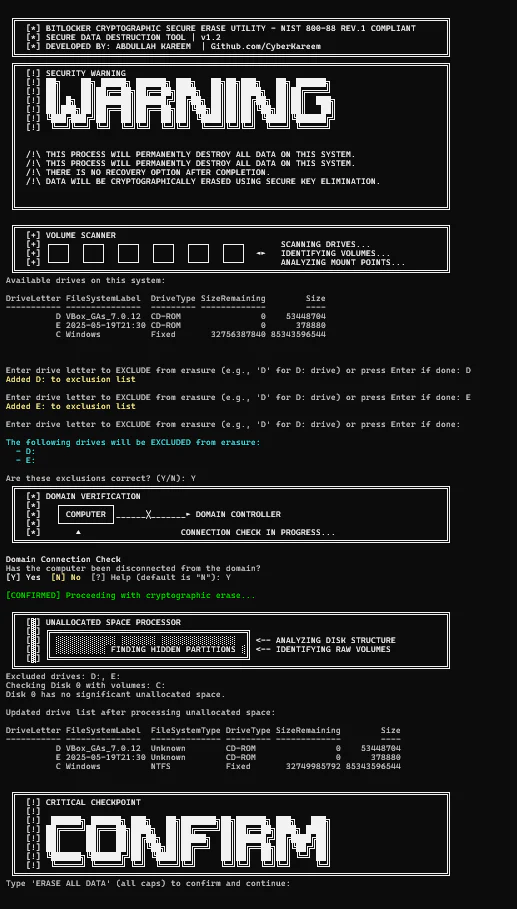
- BitLocker key handling: For each drive, the prototype verifies the encryption state, creates a new random recovery protector, and removes the previous protectors. Because this is destructive, the workflow must be validated on the exact hardware and recovery configuration before use.
- TPM clearance and final reboot: The prototype requests TPM clearance and a full reboot after processing. The exact behavior depends on the hardware, firmware, Windows configuration, and confirmation flow, so the result must be verified independently.
Intended use
The intended use is controlled evaluation of decommissioning workflows on supported BitLocker systems.
The original design referenced NIST SP 800-88 Rev.1. Rev.2 has since superseded it, and the prototype has not been independently validated as a compliance control.
Operator safeguards
The script prints each action and requires several confirmations before destructive steps. Operators must still test the exact hardware and independently verify the result.
The prototype delegates cryptography to BitLocker and Windows. Its open-source implementation can be inspected before testing.
Current status
The utility remains a prototype. Test only on disposable media, verify the outcome independently, and review the current NIST SP 800-88 Rev.2 requirements before use.
References
- National Institute of Standards and Technology. (2014). NIST Special Publication 800-88 Revision 1: Guidelines for Media Sanitization. https://nvlpubs.nist.gov/nistpubs/SpecialPublications/NIST.SP.800-88r1.pdf opens in a new tab
- Microsoft Docs. (n.d.). BitLocker Overview. https://learn.microsoft.com/en-us/windows/security/information-protection/bitlocker/bitlocker-overview opens in a new tab
- Microsoft Docs. (n.d.). Clear-Tpm (Trusted Platform Module). https://learn.microsoft.com/en-us/powershell/module/trustedplatformmodule/?view=windowsserver2025-ps opens in a new tab
- Microsoft Docs. (n.d.). Enable-BitLocker. https://learn.microsoft.com/en-us/powershell/module/bitlocker/enable-bitlocker opens in a new tab
- Microsoft Docs. (n.d.). Add-BitLockerKeyProtector. https://learn.microsoft.com/en-us/powershell/module/bitlocker/add-bitlockerkeyprotector opens in a new tab
- Kareem, A. (2025). BitLocker Cryptographic Erase Utility - Secure Data Destruction Script. GitHub. https://github.com/cyberkareem opens in a new tab